


YouCam Perfect - Photo Editor
3.939.36K Reviews
App Specs
- Version
- Varies with Device
- Updated On
- License
- Free
- Downloads
- 100,000,000+
- Developer
- Perfect Mobile Corp.
- Categories
- Photography
- Platform
- Android, iOS
Screenshots
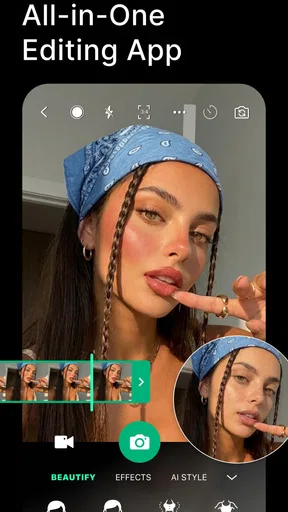
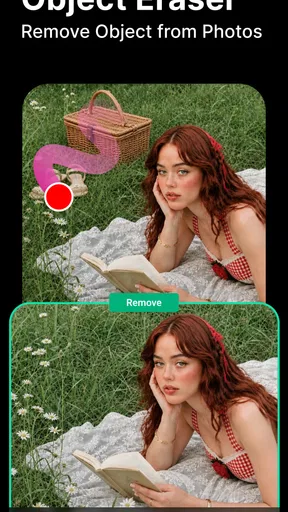
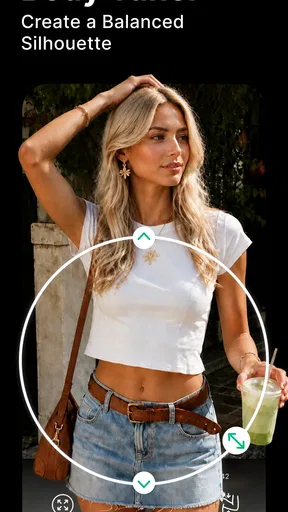
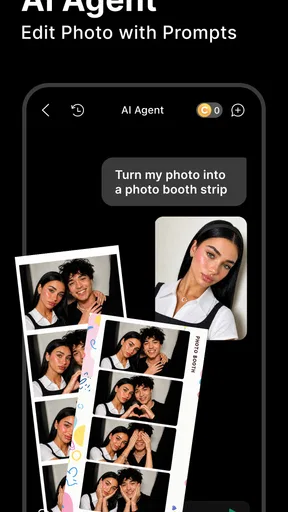
 Analysis by AppCompare
When I edit a photo on my phone, I usually want a quick improvement, not a long session at a desktop editor. That’s the space YouCam Perfect - Photo Editor aims to fill: a photography app for quick portraits, playful effects, and small fixes before I share or save an image. My overall impression is that it suits people who like having several creative tools together, as long as they are comfortable choosing edits carefully rather than accepting every automatic change.
First Impressions
When I first downloaded the app, I was a bit skeptical. There are so many photo editing apps out there, so what makes this one stand out? Right off the bat, the app has a clean and intuitive interface. It’s pretty straightforward to navigate, which is a big plus for anyone who, like me, doesn’t have the patience for complicated layouts.
Trust, choices, and the kind of editing it offers
The app is made by Perfect Mobile Corp. and has been around since its release in February 2014. Its scale is easy to see: it has over 100 million installs and an average rating of 3.9 from around 2.1 million ratings, alongside roughly 39,000 written reviews. Those figures tell me it is widely used, but they are not a substitute for deciding whether its editing style and choices suit me. It is free to install, rated Teen, and offers in-app purchases ranging from $0.69 to $119.99 per item, so I would check the price shown for any paid option before confirming it.
Because this is a photo app, trust matters most when I am working with personal images: portraits of family, pictures taken at home, or anything I would not want to share casually. I avoid treating an editing screen as a privacy guarantee. Before granting access or choosing to share an image, I read the permission prompt and the app’s current privacy information, then decide whether the requested access makes sense for the task. I would not upload a sensitive picture simply because a tool makes an edit convenient.
My practical rule is to start with one image I am comfortable using, try the edit, and pay attention to the controls that appear on screen. I also keep an untouched original so that I can compare the result and return to the natural photo if the changes feel too strong. These habits are useful with any portrait editor, but especially with an app that encourages quick retouching and creative effects.
Features Galore
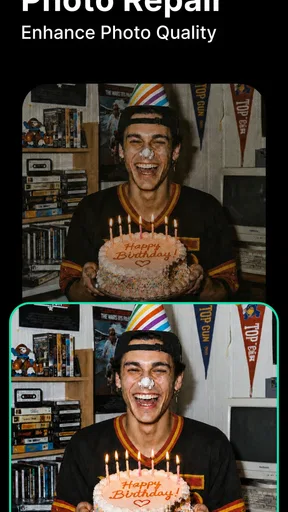
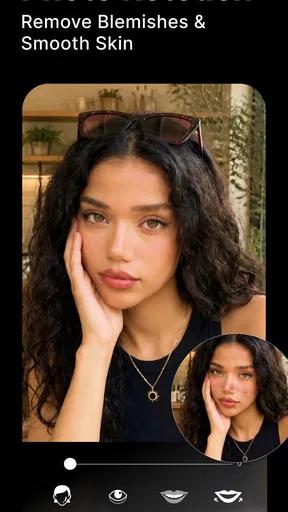
This app is packed with features that are super easy to use. From basic editing tools like cropping and rotating to more advanced features like skin smoothening and eye bag removal, it’s got it all. I love the one-tap auto-enhance feature—it’s like magic for your photos! The background removal tool is also a lifesaver if you want to create fun collages or just change up your photo’s vibe.
For a more natural result, I recommend treating a one-tap enhancement as a starting point rather than a finished edit. I check the face against the original, then reduce or undo anything that changes skin texture or facial details more than I intended. This quick before-and-after check is particularly useful when a photo will be used as a profile picture: a small lift in brightness can help, while several strong retouching effects at once can make the image look unlike me.
Worth Reading Before You Choose

Flipboard Shows What News Apps Must Do Beyond the Feed

Switching to Android Auto Means Rethinking Your Driving Routine

Google Calendar Makes a Crowded Week Easier to Manage

Ludo King Makes the Most of the Minutes Between Plans

Baby Panda World Brings Quick Play to Modern Phones, but Its Game Library Feels Busy

ESPN’s Live Game View Makes Following Close Games Easier
Background removal is most convincing when the subject has a clear outline and stands apart from the scene. Hair, loose sleeves, and objects that overlap the subject are harder to separate cleanly, so I inspect the edges before using the cutout in a collage. If the boundary looks rough, a simpler crop or a photo with a less cluttered background is often the better choice than spending time trying to rescue it.
Another thing that really caught my eye is the range of filters and effects. Whether you’re going for a vintage look or something more modern, there’s a filter here for every mood and occasion. And the best part? You can adjust the intensity of each filter, giving you complete control over the final look.
That intensity control is worth using rather than leaving a filter at full strength. I often find a lighter setting keeps the original lighting and colors recognizable while still adding a little character. For a set of photos from one occasion, I would reuse a similar look and strength across the images; otherwise, each picture can feel as though it came from a different album.
Useful routines for portraits and everyday photos
A realistic use for the app is tidying a quick group selfie after dinner. I can crop out distracting space, try a restrained enhancement, and decide whether a filter improves the warm indoor lighting. If one person is standing in front of a messy background, a cutout might help with a playful collage, but I would not assume it will preserve every strand of hair perfectly. Checking the image at normal viewing size—not only zoomed in—helps me judge whether the final result looks natural when shared.
For a product or hobby photo, I would work in a different order: crop first to establish the composition, make a modest overall adjustment, and only then add a decorative effect if the picture needs it. That sequence makes it easier to spot which change caused a problem. It also avoids piling stickers or filters over an image whose framing still needs attention.
The app is a good fit for casual creators who want portrait touch-ups, quick visual experiments, and collages without learning a complex editing workflow. It is less suitable if I need exact color correction, detailed layer work, or precise control over individual parts of an image. In those cases, a more advanced editor is a better tool, even if it takes longer to learn.
Fun with Augmented Reality
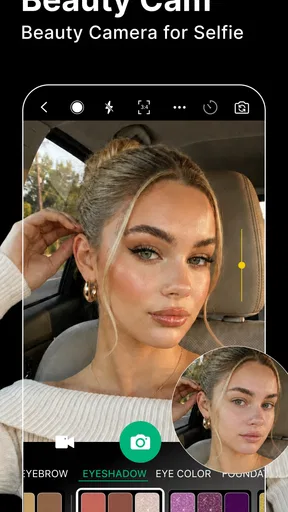
Now, this is where things get really interesting. The app includes some cool AR features, like animated stickers and frames. It’s pretty fun to play around with these, especially if you’re into creating unique stories for Instagram or Snapchat. The virtual makeup tool is another highlight, letting you experiment with different looks without having to spend a fortune on cosmetics.
I see these effects as options for a particular mood, not as essential finishing steps. A sticker or virtual makeup can be entertaining for a story or a playful message, but it may distract from a photo meant to look understated. I usually decide where the image will go before adding an effect: what works for a casual social post may not suit a work profile or a family keepsake.
One useful way to try virtual makeup is to compare the result with the unedited portrait in the same lighting. A look that seems convincing on a brightly lit selfie can appear much stronger in a dimmer photo. If the effect changes the feel of the image too much, I would rather remove it than keep adjusting other features to compensate.
Collage and Templates
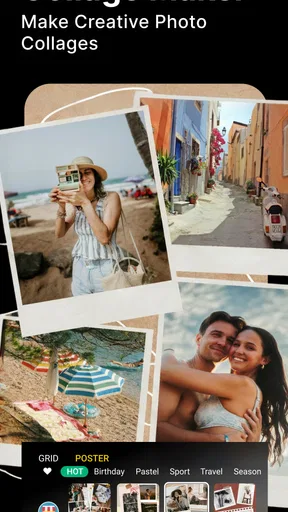
If you’re into making collages, YouCam Perfect has a variety of templates to choose from. Whether you’re documenting a family event or just creating a fun photo mashup, the templates make it easy to assemble your pictures in a visually appealing way. It’s like having a digital scrapbook at your fingertips!
Templates are most helpful when I already know the story I want the collage to tell. For a small set of pictures from a day out, I choose images with compatible lighting and a clear subject, then let the layout guide the arrangement. Mixing close-up portraits with very distant scenes can make a collage feel crowded, so I would swap a photo or choose a simpler arrangement before adding more decoration.
There is also a practical trade-off: a template can make a collage quick, but its design may draw attention away from the images. I would keep the layout restrained for a family memory or an invitation-style graphic, and save busier frames for an informal post. Before sharing, I check that faces are not hidden by borders or cropped awkwardly.
Where it sits among photo editors
Compared with a basic phone gallery editor, this app brings portrait-focused retouching, playful effects, and collage-making into one place. That breadth is convenient when I want a quick result without switching between several tools. A simpler editor may be preferable for a crop, rotation, or small exposure correction because it can keep the process direct and avoid extra creative choices.
Compared with a more advanced photography editor, the appeal here is accessibility rather than fine-grained control. I would choose this app for a fast selfie adjustment or a social collage; I would choose a specialist editor when the image needs careful tonal work, consistent color across a larger set, or detailed correction. Neither approach is automatically better—the right choice depends on whether speed and playful options matter more than precision.
Is It Worth It?
Alright, let’s talk about value. The app is free to download, but there are premium features available through in-app purchases. The free version is pretty robust and includes most of the basic editing tools you’d need. However, if you’re someone who loves all the bells and whistles, the premium version unlocks even more features like additional effects and higher resolution saving options. Personally, I found the free version to be more than sufficient for my casual editing needs.
Since paid items vary in price, I would treat each purchase as a separate decision rather than assume a subscription or upgrade is necessary for everyone. First, I would try the free tools on the kind of photos I actually edit. If a paid effect or option solves a recurring need, I can judge its value then; if I only want an occasional filter, paying may not improve my everyday experience. I also make sure I understand the displayed purchase terms before confirming anything.
One thing to note is that some users might find the ads in the free version a bit intrusive, but honestly, they’re not too bothersome compared to other apps out there.
For a calmer editing session, I find it helps to decide on the goal before opening the effect menus. If I only want a cleaner crop and a natural portrait, I can avoid getting sidetracked by decorative options. On the other hand, someone who dislikes ads, prefers a minimal interface, or wants every control visible at once may find a simpler editor less distracting.
Who should use it, and when I would pass
I would recommend giving it a try if you regularly edit selfies, enjoy experimenting with makeup effects, or want an easy way to assemble casual collages. It is particularly approachable for someone who is new to photo editing and wants visible results without first learning a technical workflow. The Teen content rating is also a useful reminder that it is aimed at a teen-and-older audience rather than being a children’s photo tool.
I would skip it if my priority were professional retouching, meticulous color consistency, or editing a large batch of images with the same precise settings. I would also choose another option if I wanted a very plain editor with no temptation to add effects. The app’s range is a strength for creative play, but that same range can add friction when I only need one small correction.
People often wonder whether they need to pay to get useful results. For casual edits, I would start with the free tools and make a purchase only if a specific paid option solves a real need. If the concern is whether a portrait will still look like the person in it, the answer depends on restraint: use the strength controls, compare with the original, and remove edits that alter recognizable features more than intended.
Final Thoughts
Overall, YouCam Perfect - Photo Editor is a fantastic tool for anyone looking to spruce up their photos with ease. Whether you’re a casual user wanting to touch up your selfies or a more serious creator looking to add some flair to your images, this app has something for everyone. It’s user-friendly, fun, and packed with features that make photo editing a breeze.
My recommendation comes with a little caution: I would keep an untouched copy of photos I care about, check edits before sharing, and review access and purchase prompts instead of tapping through them automatically. That gives me room to enjoy the playful side of the app without treating convenience as a reason to overlook my own choices. If that balance suits you, it can be a handy addition to your phone; if you want precision above all else, a dedicated editor will likely serve you better.
So, next time you’re looking to give your photos a little makeover, why not give YouCam Perfect a shot? You might just find it becoming your go-to photo editing app!
Pros
- Intuitive user interface
- easy to navigate.
- Wide range of photo editing tools.
- Real-time beauty filters enhance selfies.
- Frequent updates with new features.
- High-quality output without losing resolution.
Cons
- Contains in-app purchases for premium features.
- Advertisements can be intrusive.
- Limited features in the free version.
- Requires internet for most functionalities.
- Some tools are not beginner-friendly.
FAQs for YouCam Perfect - Photo Editor
What features does YouCam Perfect offer for photo editing?
YouCam Perfect provides a comprehensive suite of editing tools, including filters, frames, and effects to enhance your photos. It also offers advanced features such as object removal, face reshaping, and background changing. Additionally, users can create collages and animated effects, making it a versatile app for both casual and professional photo editing.
Is YouCam Perfect free to use, or does it offer in-app purchases?
While YouCam Perfect offers a range of free features, it also includes optional in-app purchases and subscriptions for advanced tools and effects. The premium version unlocks additional filters, higher editing capabilities, and removes ads, making it ideal for users looking to maximize their photo editing experience.
How does YouCam Perfect ensure user privacy and data security?
YouCam Perfect takes user privacy seriously by implementing secure data practices. The app requires permissions to access your device’s camera and gallery, but it ensures that your photos and personal information are not shared without consent. Users are encouraged to review the app’s privacy policy for detailed information on data handling and security measures.
Can YouCam Perfect be used offline, or does it require an internet connection?
YouCam Perfect can be used offline for basic photo editing and enhancing features. However, an internet connection is necessary for accessing certain features such as downloading new filters, syncing with cloud storage, and sharing edited photos directly to social media platforms. For the best experience, occasional internet access is recommended.
Is YouCam Perfect suitable for beginners, or is it more for advanced users?
YouCam Perfect is designed for both beginners and advanced users. The intuitive interface makes it easy for new users to navigate and apply basic edits, while offering advanced options for those looking for more detailed customization. The app’s tutorials and tips further help users of all skill levels to make the most of its features.


